Connecting AI tools (MCP)
Letting Claude, ChatGPT and similar clients work with your organisation's data in The Cards.
- Permission
- Organisation administrator to issue tokens
The Cards exposes a Model Context Protocol server. MCP is an open standard that lets an AI client such as Claude Code, Claude Desktop or ChatGPT call tools in another system. Connecting one means you can ask your own assistant questions like "what did we report for energy consumption last year" and have it read the answer out of The Cards.
How access works
An MCP connection is authenticated with a personal access token created in Settings → MCP. The token acts as the person who created it: it can never see or do more than that user can in the application. Narrowing scopes narrows it further; it never widens.
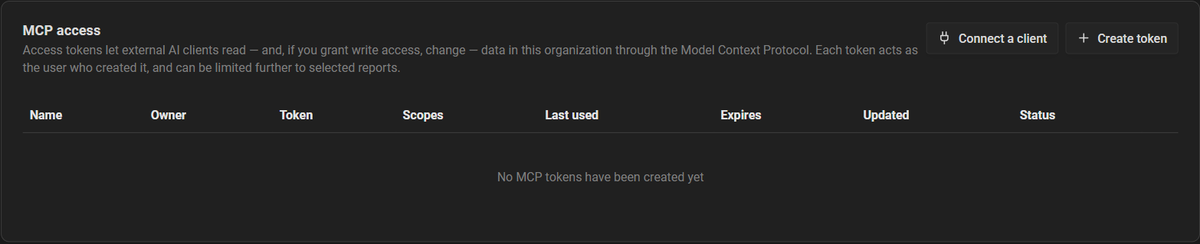
Creating a token
Open Settings → MCP and choose Create token
Give it a name that says which client it is for, so it can be recognised and revoked later.
Pick the scopes
Choose the umbrella scopes or specific ones. See MCP scopes.
Restrict it to reports, if useful
Either all reports I can read, which automatically includes reports created later, or only selected reports, a fixed list that never grows.
Set an expiry
30, 90 or 365 days, or never. Prefer a real expiry.
Copy the token
It is shown once. Copy it into your client straight away; it cannot be retrieved afterwards.
Managing tokens
The MCP tab lists every token with its owner, scopes, expiry and when it was last used. Tokens can be edited (scopes, report restriction, expiry) and revoked. Revoking takes effect immediately and cannot be undone.
Write access
Read scopes let a client look. Write scopes let it change report content directly, with no approval step: the client edits, and the change is in the report.

