Reports
Creating a report, what its settings control, and what Active, Finalised and Archived mean.
A report covers one organisation for one reporting period, under one version of one standard. Everything else in The Cards hangs off it.
Creating a report
From Reports, choose Create report.
| Field | What it does |
|---|---|
| Report name | Free text, up to 100 characters. A period in the name saves confusion later, for example "Acme AB FY 2026". |
| Comment | Optional note for your own team. |
| Standard version | Which published version of ESRS or VSME the report follows. This cannot be changed afterwards. |
| Main language | The language the report itself is written in. Separate from the language of the user interface. |
| Start and end date | The reporting period. Defaults to the current calendar year. |
| AI company name | Optional, under advanced settings. Use it when the legal entity name differs from how the company is publicly known, so AI answers refer to the right company. Left empty, the organisation name is used. |
Creating a report needs write access to reports.
Report statuses
A report is always in one of three states, changed from report settings.
- Active: the working state. Data points can be edited, comments posted, threads resolved, gap analysis updated.
- Finalised: the report is done. Everything becomes read-only. Use this when the report has been signed off, so nothing changes underneath an auditor.
- Archived: put away. Also read-only. An archived report can be deleted; an active or finalised one cannot.
You can return a report to Active from either state.

Folders
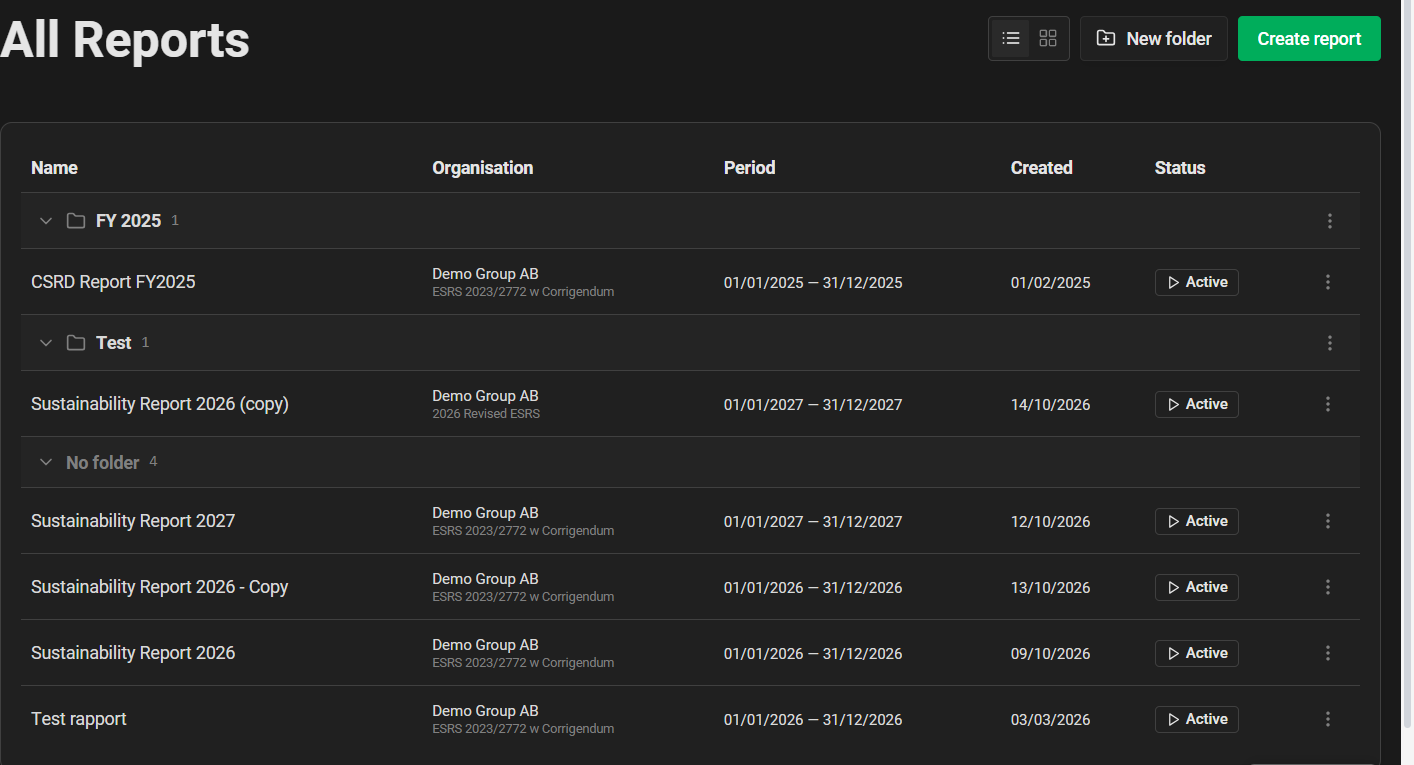
The report list can be grouped into folders. A folder is only a name: group reports by company, by year or by whatever suits your organisation. A report is in at most one folder, and reports in no folder are listed last under No folder.
- New folder, next to Create report, creates one. Names are up to 100 characters and must be unique within the organisation.
- Move to folder in a report's actions menu puts it in a folder or takes it out again. You can also drag a report onto a folder.
- A folder's own menu lets you rename or delete it. Deleting a folder keeps its reports; they are just shown without a folder.
- Folders can be collapsed in the list, and The Cards remembers which ones you collapsed.
Creating, renaming and deleting folders, and moving reports between them, needs the same write access as creating a report. Everyone who can see the report list sees the folders.
Table view and file view
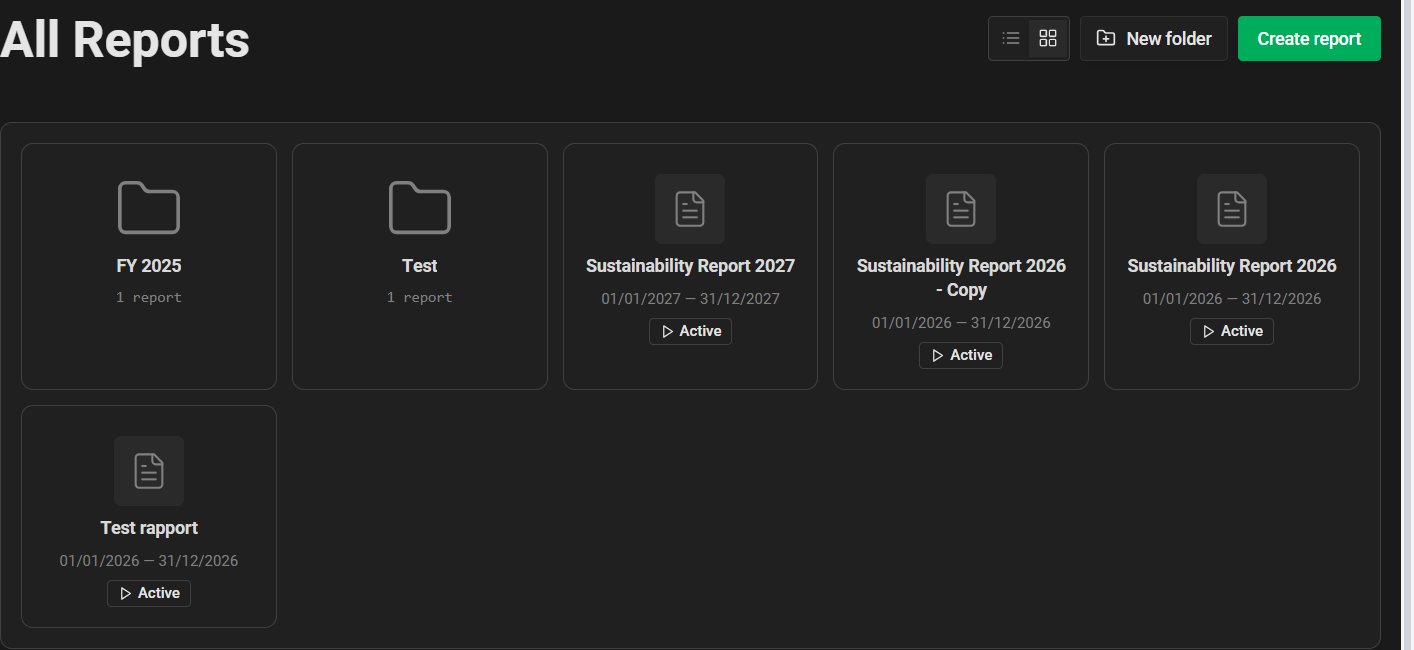
The toggle next to the filters switches the report list between Table view, the default, and File view, which shows folders and reports as large tiles. In file view a folder tile shows how many reports it holds; open it to see them, and go back to All reports from the breadcrumb. The choice is remembered per organisation.
The report overview
Opening a report shows:
- Report info: name, organisation, responsible user, period and status.
- In progress: the disclosures you personally touched most recently.
- Topics: one card per topic with a progress bar, the number of unresolved comment threads and the number of remaining data points.
Progress counts both unanswered data points and unresolved threads, so a topic is not finished while a question is still open on it.
Report settings
Report settings is reached from the report page and is available to users with full access to that report. It holds:
- The status actions described above, and Delete report for archived reports.
- Team: the report's responsible user.
- Edit report: the same form as creation, with the standard version locked.
- Permissions: per-group access to this specific report. See Permissions.

