Publishing a report
Turning a finished report into a public web page with its own link.
- Permission
- Publication: read to view, read and write to create, edit and delete
A publication is a public, read-only web version of a report, reachable by anyone who has the link. There is no sign-in on the public side.
Creating one
From Publications, or from Share report in a report's actions menu.
Basic info
| Field | What it does |
|---|---|
| Name | Internal label for the publication. |
| Status | Draft or Published. Only Published is reachable publicly. |
| Published from / to | The window in which the link works. Either can be left empty for no bound. |
| Language | The language the public page is presented in. |
Display options
| Field | What it does |
|---|---|
| Theme | An organisation theme: logo, colours, fonts. |
| Introduction | Rich text shown at the top of the public page. |
| Show back link | Adds a link back to your own site, with text and URL you choose. |
| Show share button | Adds a share control to the public page. |
| Include additional information | Shows each data point's additional information under its value. Off by default. |
What the public page contains
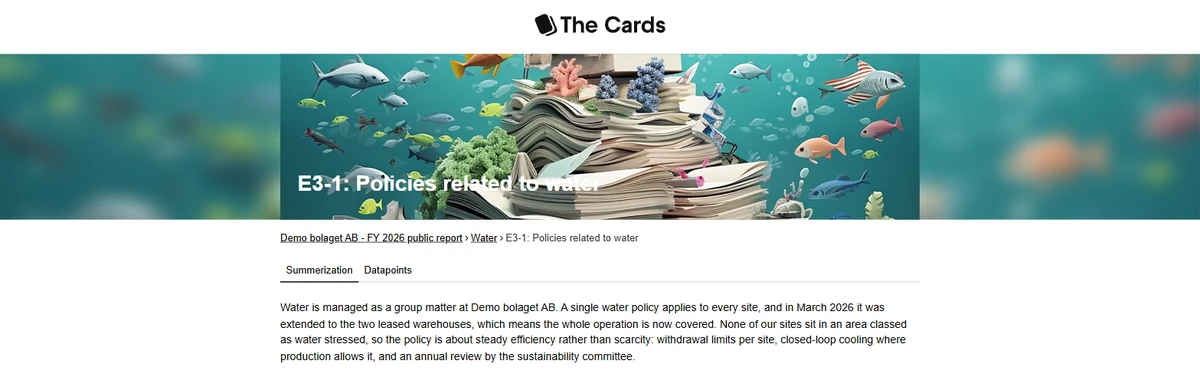
Only the disclosures marked material in the report. Anything marked not material is left out entirely. Values come from the report's saved data points, and any custom topic naming, colours and images your organisation has configured are applied.
Each disclosure's summary is what makes the published report readable: it gives the reader the narrative, with the reported figures alongside it. A disclosure with no summary still publishes, but it arrives as data and nothing else. It is worth going through the material disclosures and checking that each one has a summary before you set the publication to Published.
Managing publications
The publications list lets you preview the PDF, open the public link, edit the settings and delete a publication. Once the end date passes, the link stops working and the publication is shown as Expired.
About the link
Because of that, publish when the report is ready to be public, and use the date window rather than leaving old publications open indefinitely.

